



Small business owners spend a significant portion of their workweek on repetitive tasks, such as sending out invoices, creating social media posts, and transferring information between applications.
The good news is that you don’t have to hire staff to regain this lost time.
Process automation software for small businesses is easier to use, less expensive, and more accessible in 2026 than it was at any other time in history.
This guide will give you the most effective solutions currently available. It will also tell you exactly what each solution can accomplish and which one to choose based on your own requirements. No hype, no technical jargon, just practical guidance.
What Is Process Automation Software?
Automated process software will automate repetitive business functions, for example, data input, sending emails, and integration with applications without any human intervention.
You can think of automated process software like an online assistant that will follow the rules you create:
- Transfer data from a website form to your email marketing list
- Send follow-up emails to customers who abandoned their cart
- Post articles from your blog on social media sites while you are sleeping
- Backup all of your files to cloud storage
- Generate reports using multiple data sets
Automation is not replacing employees or other resources at an entrepreneur level or growing company level, but rather eliminating friction in order for the employee to be able to focus on activities that grow the business.
The best platforms for automating processes will have the following characteristics by 2026:
- No code development to eliminate the need for developers
- Artificial intelligence (AI) based suggestions that will analyze your usage patterns and make recommendations for new ways to automate
- Deeper integrations with the application(s) you currently use
- Transparency regarding the cost of the platform, and no additional costs or fees
Best Process Automation Software for Businesses 2026: Quick Comparison Chart
Here’s how the top tools stack up based on features, pricing, and ease of use.
| Tool | Best For | Free Plan | Starting Price | Difficulty | Rating |
| Make | Advanced visual workflows | Yes | $9/month | Medium | 4.6/5 |
| Zapier | Beginners & huge app library | Yes | $19.99/month | Easy | 4.7/5 |
| n8n | Self-hosting & data control | Yes (self-hosted) | Free self-hosted | Medium | 4.5/5 |
| Microsoft Power Automate | Microsoft 365 users | Yes | $15/month | Medium | 4.4/5 |
| UiPath | Enterprise RPA & AI automation | Yes (basic) | $25+/month | Advanced | 4.7/5 |
| Workato | Enterprise integration | No | Custom pricing | Advanced | 4.5/5 |
| IFTTT | Simple personal tasks | Yes | $3.99/month | Easy | 4.3/5 |
| Automation Anywhere | Cloud-native RPA | No | Custom pricing | Advanced | 4.5/5 |
| Camunda | Process orchestration | Yes (community) | Custom pricing | Advanced | 4.6/5 |
| Appian | Low-code BPM | Yes (community) | Custom pricing | Advanced | 4.5/5 |
1. Make Review (formerly Integromat)
Ideal for: Visual thinkers looking to drill down on every detail
Make has grown from being an automated platform to becoming one of the most flexible automation platforms available.
Rather than simply offering “if this then that” type logic, Make allows users to create complex workflows through the use of a visual interface. The user can view the movement of their data from app to app, thus making it easier to troubleshoot any errors or issues.
First-Hand Experience
When it comes to the Make testing, I was immediately impressed by the visual builder.
In contrast to the tools that use drop-down boxes to establish conditions, Make shows the complete data path from start to finish. Each module is a building block that is connected. Filters, routers, and aggregators are easily inserted into the flow at any point.
There is a learning curve, but once you have an understanding of how the platform works, you can develop automation flows that would be difficult or impossible to do with custom development on other platforms.
Features
1. Visual Builder: With drag-and-drop functionality, you can create multi-step automation processes. Connections between modules are displayed in real time.
2. Data Transformation: You can filter, format, and manipulate your data as needed while it is being processed in the flow. You can parse JSON, format date fields, and perform calculations without needing to write any code.
3. Error Handling: There are detailed logs of what happened (including exact timing) and why something failed. The platform will also provide suggestions for fixing many common error issues.
4. Routers & Aggregators: Using this feature, you can create decision points in a workflow or group data items together before they are processed.
Pros:
- Shows the complete flow of data visually
- Includes advanced data transformation options
- Provides detailed execution logs
- Offers a generous free tier for testing purposes
- Can handle large, complex, and multibranched workflows.Cons:
- Has a steeper learning curve than most basic tools.
- May overwhelm new users with its interface design.
- Requires a certain level of technical knowledge to utilize advanced features.
- Will increase costs if you are using high-volume operations.
Who Should Use Make
“Make” is best suited for entrepreneurs who have a large number of applications to manage and want to develop customized workflow scenarios beyond standard trigger-based scenarios.
For example, an E-Commerce company may be able to use Make to automatically add a new order to their Accounting Software, send a receipt via Email to the customer, and update their Inventory all at once using a single Visual Pipeline.
If you are an E-Commerce company, we also have a guide to help with Strategies for Automating Your Shopify Business so that you can see step-by-step examples.
Marketing Agencies will also find Make useful as well. They will be able to move data from one of their client’s tools to another tool or create a Custom Reporting Dashboard.
Who Should Skip Make
If you only need simple one-step automations like “save email attachments to Google Drive,” Make is overkill.
Beginners should start with Zapier or IFTTT, then graduate to Make as needs grow.
Real-World Use Case
A small online retailer connects Shopify, QuickBooks, and Mailchimp through Make.
When a customer orders:
- Create an invoice in QuickBooks
- Add customer to Mailchimp segment
- Send a personalized receipt
- Update inventory across channels
- Notify the team via Slack if the stock runs low
- This saves about 8 hours weekly of manual data entry.
Pricing
| Plan | Price | Operations/Month |
| Free | $0 | 1,000 |
| Core | $9 | 10,000 |
| Pro | $16 | 40,000 |
| Teams | $29 | 80,000 |
| Enterprise | Custom | Custom |
2. Zapier Review
Good for: New users who need to simply connect apps and have a large number of app options available.
Zapier is still the best option for creating app connections using no coding or technical skills.
If you can complete a form, you can create a Zapier automation.

ALT Text: Zapier form-based automation builder showing trigger and action selections for creating app connections.
First-Hand Experience
Setting up my first Zap took about four minutes.
The interface asks simple questions: “When this happens…” and “Do this…” Select apps, choose triggers and actions, and test the workflow. Zapier handles the rest.
The number of integrations stands at over 8,000 apps. Chances are high that every tool you use is available.
Pre-built templates also save time. I found a Zap for exactly what I needed without building from scratch.
Key Features
- Massive app directory: Connect Google Sheets, CRM tools, social media, and specialized business software.
- Ease of use: The interface walks through each step in plain language. No need to understand APIs or webhooks.
- Pre-built templates: Browse thousands of ready-made workflows created by Zapier and the community.
- Filters and paths: Paid plans add conditions to Zaps, creating different branches based on data.
Pros:
- Over 8,000 app integrations
- Beginner-friendly interface
- Thousands of prebuilt templates
- Reliable performance
- Excellent support and documentation
Cons:
- Costs rise significantly with high usage
- Limited control compared to developer tools
- Multi-step workflows need paid plans
- Can’t handle complex data transformations easily
Who Should Use Zapier
Zapier is ideal for small business owners and those who are just starting, as it makes automation simple without overcomplicating things.
Some examples include:
- Automatically saving email attachments into Dropbox.
- Adding all new Shopify customers to your email list.
- Post your new blog posts on social media sites.
- Sending Slack notifications whenever someone submits one of your forms.
Small businesses also use Zapier; as long as they have some tools they want to connect, they can do so, without having to get their IT person involved.
More information about how to automate your email marketing with Zapier can be found in this article.
Who Should Not Use Zapier
If you require complex, multi-step workflows that involve heavy data processing, then Zapier may drive you crazy.
Instead, choose Make or Custom Development.
High-volume users may find Zapier to be cost-prohibitive. Carefully compare pricing before running large amounts of Zaps each month.
Real World Example
A freelance graphic designer uses Zapier for client onboarding.
The process looks like this when a new client completes her contact form:
- Add the customer to HubSpot CRM.
- Send the client a welcome email along with an invitation to book.
- Create a Google Drive Folder for the client’s project files.
- Add the client to the Asana Board.
- Send the client a Slack Notification.
All of this took approximately 3 hours of manual setup time for each client.
Pricing
| Plan | Price | Tasks/Month | Features |
| Free | $0 | 100 | Single-step Zaps |
| Starter | $19.99 | 750 | Multi-step workflows |
| Professional | $49 | 2,000 | Filters, paths |
| Team | $69 | 3,000 | Advanced features |
| Enterprise | Custom | Custom | Unlimited users, governance |
3. n8n Review
Perfect For: Owners who are tech-savvy and looking to have total self-hosted control over their data.
n8n is a totally open-source automation tool that provides you with complete control of your data.
You can host n8n on your own server, with no recurring monthly fees for hosting, and you will always be in total control of all your data.
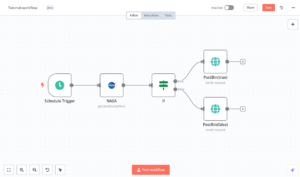
First Hand ExperienceFirst-handd experience is required when setting up an n8n. It also takes more tech-savvy than most cloud options as it requires a server, at least some familiarity with the command line, and the ability to install things.
However, n8n’s node-based flow with visual connections will feel very much like working with Make, and its many capabilities are refreshing. There are no usage limitations, no bill shocks, and none of the data leaves your server.
If you are a business that has to manage sensitive data, then the peace of mind that comes with being able to completely control how your data is used is worth the effort to set n8n up.
Key Features
- Self-hosted option: For regulated businesses, having complete control over your data is key. Self-hosting n8n allows you to ensure your data never goes to a third-party server.
- Faircode license: If you need to modify n8n for your specific use case, a fair code license allows you to do so. You can add features, change the functionality, or create custom nodes.
- Node-based workflow: As stated before, n8n’s user interface is similar to Make. Each “node” represents a different app or action, and the user connects them visually.
- Webhook support: With n8n, you can receive and process data from anywhere that sends webhooks.
Pros:
- Self-hosted: For regulated businesses, having total control over your data is crucial. Self-hosting n8n ensures your data never goes to a third-party server.
- Once-upon-a-time fee: There are no recurring fees associated with using n8n.
- Node-based: While n8n’s user interface may take a little time to get used to, it is visually similar to Make.
- Open source community:n8n is actively supported by a large community of developers.
- Unlimited workflows (server-dependent): With n8n, you can create as many workflows as you want. The number of workflows depends on the server’s capabilities.
Cons:
- Technical requirements: In order to self-host n8n, you will need to be comfortable with command lines, servers, and troubleshooting.
- Not as polished as other paid options: Compared to some other paid automation platforms, n8n’s user interface is less polished.
- Maintenance and updates: As with any self-hosted solution, you will need to handle all updates and maintenance for n8n yourself.
- Community-only support: Unfortunately, n8n does not offer official customer support only through the open source community.
Who Should Use n8n:
Business owners who have a technical comfort level themselves, or a developer on their staff, who are looking for a way to eliminate recurring SaaS fees and still meet their automation needs.
Regulated industries where data residency matters:
- Healthcare (HIPAA compliant)
- Financial services
- Legal practices
Government agencies that work with multiple clients will find value in unlimited workflows without having to pay per client.
Who Should Skip n8n:
If you are not comfortable with command lines, servers, and troubleshooting, stay with cloud options.
It could end up taking you more time to keep n8n up and running than the cost savings of managed automation tools would be.
Beginners to automation should begin with Zapier or IFTTT first. Once you know how to automate and need more control, then come back to n8n.
Real-world use case.
A boutique marketing firm dealing with sensitive client information uses self-hosted n8n for creating reports. Since client data never leaves their servers, they are able to remain HIPAA compliant and automate reports for dozens of accounts.
The boutique marketing firm estimates saving approximately $300 each month in tool subscriptions and has been able to process unlimited workflows with n8n.
Pricing
| Option | Price | Notes |
| Self hosted | Free | Pay only for server hosting ($5–$20/month) |
| Cloud (Starter) | €20/month | Managed service, 5,000+ tasks |
| Cloud (Pro) | €50/month | 20,000+ tasks, priority support |
4. Microsoft Power Automate Review
Best suited to: Businesses built around the Microsoft Ecosystem
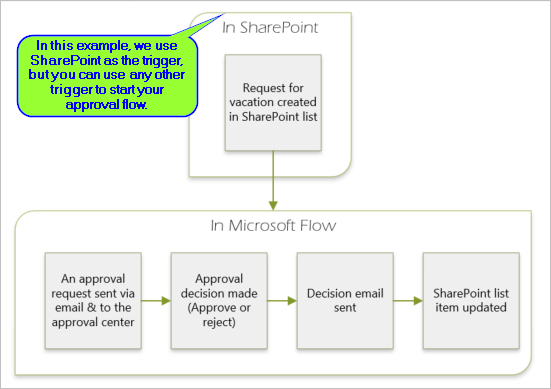
As a Microsoft 365 user (Outlook, Excel, Teams, SharePoint), Power Automate feels like a natural fit.
In terms of its Microsoft Integration, Power Automate has both beginner-friendly templates and the ability to customize its automation through the use of Advanced Development.
Hands-on Experience
Using Power Automate had a familiar feel; I am a long-time Microsoft user. Microsoft Design Language was used in the Power Automate interface. As such, connecting to Outlook, Excel, and SharePoint required zero additional setup;p they were already set up.
What makes Power Automate stand out is its Robotic Process Automation (RPA) capabilities. Using RPA, you can record mouse clicks and keyboard presses to automate legacy desktop applications, which lack modern APIs. For many organizations stuck in legacy software, this is a massive deal.
Key Features
- Microsoft Ecosystem Deep Integration: Create Workflows From Emails, Create Calendar Events from Forms, Sync Data Between Excel Spreadsheets and Databases Automatically.
- RPA Capabilities: Record Mouse Clicks and Keyboard Presses to Automate Legacy Desktop Applications Lacking Modern APIs.
- AI Builder: Add Intelligence – Extract Data from Documents, Analyze Sentiment, Process Forms Without Templates.
- PreBuilt Flow Templates: Hundreds of Pre-Built Flows for Common Microsoft Scenarios.
Pros:
- Deep Integration With Microsoft Office 365 Apps.
- Robotic Process Automation for Legacy Desktop Applications.
- Enterprise Grade Security and Compliance.
- Frequently Included In Existing Microsoft Plans.
- AI Builder for Intelligent Workflows.
Cons:
- Limitations Outside of the Microsoft Ecosystem.
- Can Be Confusing For Non-Microsoft Users.
- Many of Its Features Require A Premium License.
- Can Have a Cluttered Interface.
Who Should Use Power Automate
Companies that are experiencing growth and rely on Microsoft tools would be a good fit for Power Automate.
If you currently subscribe to Microsoft 365 Business Premium, you may have some of the capabilities included in your subscription at no additional cost.
An Essential Option If Your Company Needs To Automate Desktop Applications That Don’t Connect to Cloud Services. The RPA capabilities are one of a kind among mainstream automation options.
See our Microsoft 365 Productivity Guide for More Ways to Streamline Your Workflow.
Who Should Avoid Power Automate
If Your Company Runs On Google Workspace or Uses Only a Few Microsoft Products, Look Elsewhere.
Outside of the Microsoft Ecosystem, Power Automate’s Magic Is Average.
Small Companies on Basic Microsoft Subscriptions May Find Premium Options Too Expensive Compared to All-in-One Alternatives Like Zapier.
Real World Use Case
A Small Accounting Firm Uses Power Automate for Incoming Invoices.
When Clients Send Invoices Via Email:
- Save Attachments to SharePoint
- Use AI Builder to Extract Key Data
- Create Records in Desktop Accounting Software Through RPA
- Send Notifications to Assigned Accountant Via Teams
- Log Everything in Excel to Track
This Reduced Manual Data Entry By Approximately 15 Hours Per Week Across the Firm.
Pricing
| Plan | Price | Notes |
| Microsoft 365 bundled | Included | Basic capabilities with business plans |
| Power Automate Premium | $15/user/month | RPA, AI Builder, advanced features |
| Pay-as-you-go | Variable | For high-volume scenarios |
5. UiPath Review
Good for: Enterprise-wide RPA and using AI for automation
UiPath is a top-rated enterprise RPA solution that offers robotic process automation (RPA) in conjunction with artificial intelligence (AI).
UiPath is commonly used on an enterprise level for all types of large-scale automation projects throughout Asia and worldwide.
[Add your original screenshot of UiPath showing the dashboard and automation studio]

ALT: Screenshot of UiPath enterprise-wide automation platform showing Process Mining and Bot Orchestration
Key Features
- Ai-Powered RPA: The use of Artificial Intelligence allows you to automate a variety of processes with advanced automation bots.
- Process Mining: Allows you to identify potential automation opportunities based on user interaction.
- Document Understanding: Ability to extract data from unstructured documents.
- Orchestrator: Central location for managing, monitoring,g and scheduling bots.
Pros:
- Most widely deployed RPA platform in Asia.
- Comprehensive Automation Ecosystem.
- Strong Partner and Training Network.
- Capable of handling Complex Cross System Automation.
- Excellent Governance/Audit Capabilities.
Cons:
- Higher Total Cost of Ownership.
- Steeper Learning Curve for Beginners.
- May be Over Kill for Simple Needs.
Who Should Use UiPath
- UiPath is ideal for Medium to Large Enterprises with High Volume, Complex Processes.
- Particularly good in Finance, Operations, and Compliance areas where Accuracy and Auditability are critical.
- Many multinational enterprises that operate in numerous countries utilize UiPath as their standard platform due to its scalability and mature ecosystem.
Who Should Skip UiPath
Small Businesses with Basic Automation Needs will find UiPath to be Expensive and Difficult to implement. Stick with Zapier or Make.
Pricing
| Plan | Price | Notes |
| Basic | $25+/month | Per-user pricing for attended automation |
| Enterprise | Custom | Unattended bots, orchestrator, process mining |
6. Workato Review
Best suited for: Integrating enterprise systems and automating workflow across systems.
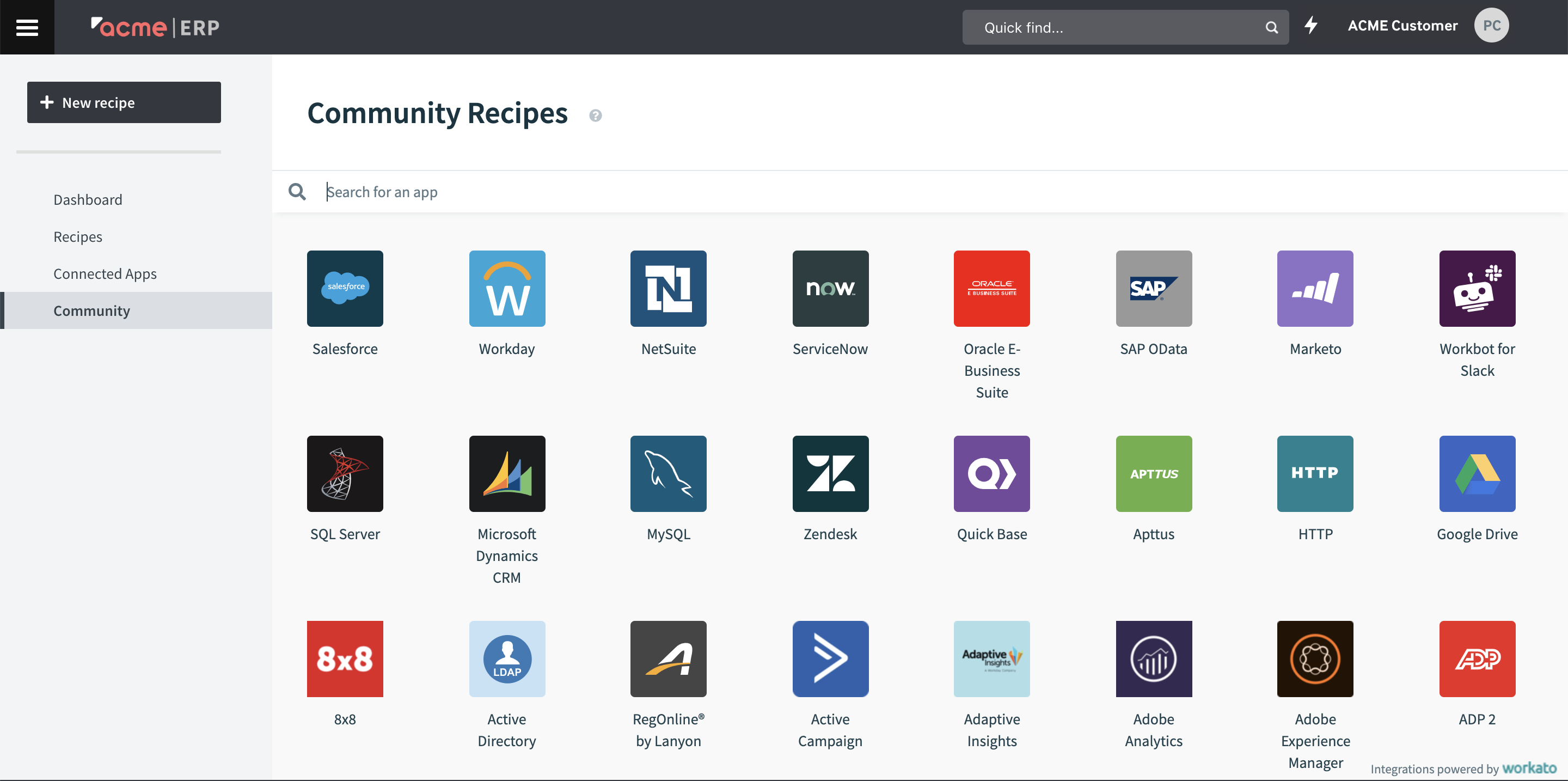
Workato is an enterprise-level platform used for integrating and automating workflows in systems such as cloud and on-premises applications.
Key Features
- Recipe Key Features: Recipes are event-based triggers, conditional logic, and multi-step actions.
- API Platform: Create, manage, and expose your own APIs for use by developers.
- Governance Controls: Set permission levels, monitor activity through audit trail logs,s and approve workflows.
- Data Orchestration: Synchronizes data from one or more enterprise systems.
Pros:
- Has enterprise-grade connectors to the most popular systems (Salesforce, NetSuite, SAP)
- Compliant with strong security standards (SOC2, HIPAA)
- Scales along with business growth
- Best suited for finance, HR, and revenue operations teams.
Cons:
- Too expensive for small businesses.
- Too much complexity and expense for simple automation requirements.
- Steep learning curve.
Who Should Use Workato
Use Workato when you have a large business with a high growth trajectory and require the integration of many different departments using automation.
Must use Workato when working with enterprise customers who have compliance certification requirements or need to integrate core business systems such as ERPs.
Who Should Skip Workato
Skip Workato if you are a solo entrepreneur or a small team with simple automation requirements. Use Zapier or Make instead.
Real World Use Case
A growing B2B software company uses Workato to automate its connection between its Salesforce CRM, NetSuite ERP, and Marketo. When they convert leads into customers, Workato creates records across all three systems using automated workflows.
Pricing
| Plan | Price | Notes |
| Custom | Starting at $10,000+/year | Based on usage and connectors |
7. IFTTT Review (If This Then That)
Ideal For: Basic Personal Low Volume Automations
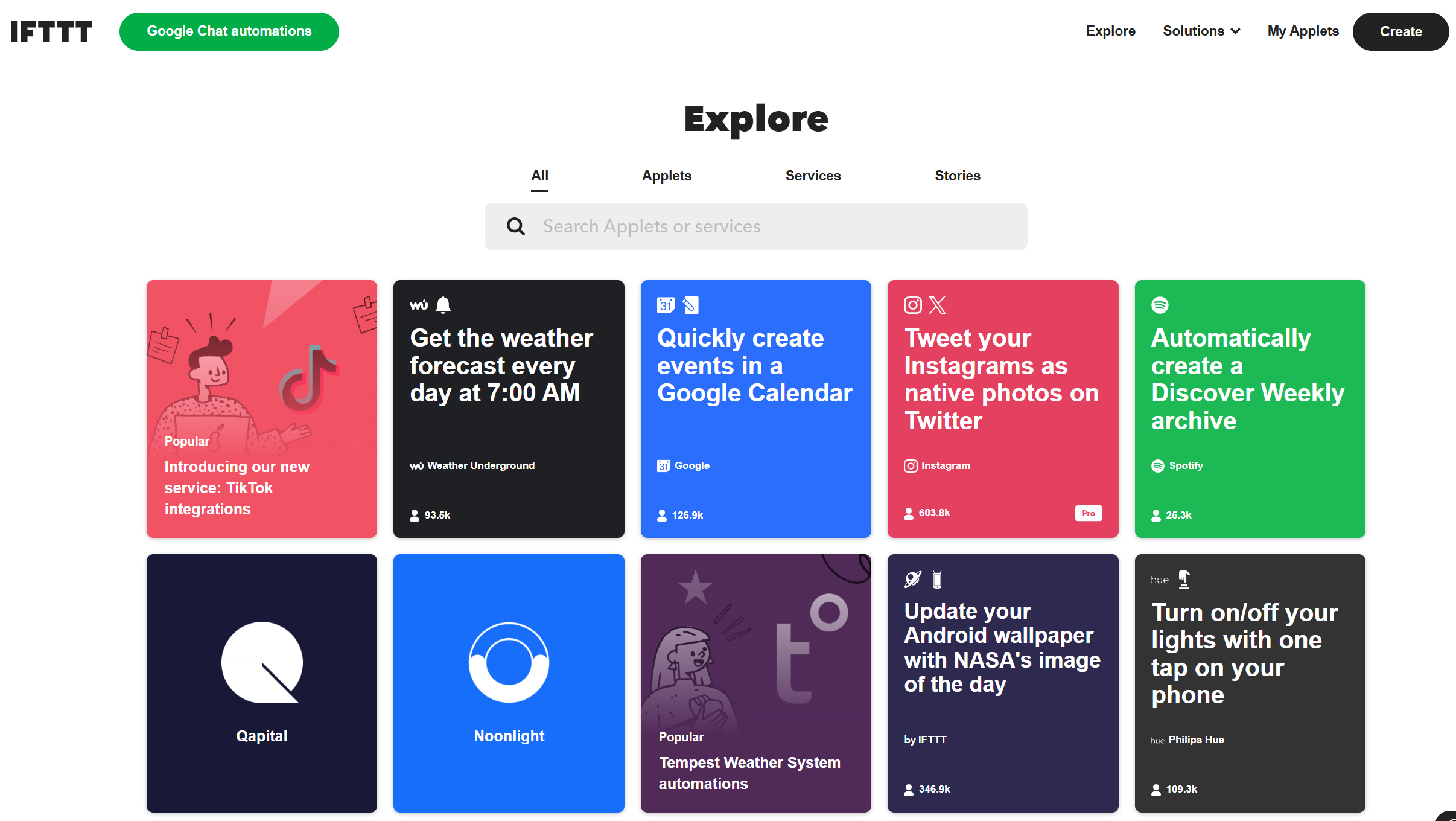
Although IFTTT was originally designed as a consumer application, it has established itself as an ideal option for businesses requiring very basic, lightweight automations.
While IFTTT may be less robust than Zapier or Make, for smaller business automations, it provides the simplest and most hassle-free way to accomplish the task.
Key Features
- Simple: Every automation is based on a single “If This Then That” Rule
- Applets: One-click activation opredefineded connections
- Integration with Smart Home Devices: Automated control of lighting, temperature, security systems, etc.
- Trigger Based On Mobile Device Status: Location, Battery Level, Connectivity, etc.
Pros:
- Extremely easy to use; no need for training
- Ideal for creating personal and small-scale automations
- Many options for integrating Smart Home and IoT devices
- Free Tier Available
- Mobile Friendly Applications
Cons:
- Only capable of automating basic one-step tasks
- Limited number of Business Apps to integrate with
- Too Basic for Complex Workflows
- Reliability in Mission-Critical Tasks Can Be Limited
Who Uses IFTTT
Business Owners who want to automate a few basic tasks without having to learn another platform will find IFTTT to be useful.
Examples:
- Tweet Instagram Posts Automatically
- Receive Notifications When Key Client Emails Arrive
- Upload Photos To Cloud
- Automate The Shut Down Of Lights At Closing Time
Retail and Hospitality Businesses Using Smart Devices Will Find IFTTT to be an Excellent Option.
Pricing
| Plan | Price | Features |
| Free | $0 | 5 Applets |
| Pro | $3.99/month | Unlimited Applets |
| Pro+ | $7.99/month | Multi-step, faster performance |
8. Automation Anywhere Review
BEST FOR: Enterprise automation on cloud native platforms
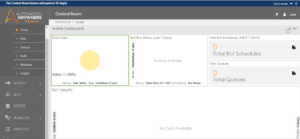
Automation Anywhere is a global leader in cloud-based, AI-enabled automation and has significant adoption worldwide as a cloud-first and AI-enabled automation platform.
Key Features
- Architecture: A cloud native (fully cloud-based) platform
- AI-Powered Bots: Document intelligence using machine learning and artificial cognition
- Process Discovery: Identify areas of potential automation
- Bot Marketplace: Pre-built bots for many common processes
Pros:
- Strong document automation and AI cognition
- Flexibility in cloud deployment
- 95% accurate document OCR
- Self-healing agentic AI workflow
Cons:
- Licensing and implementation costs may be high
- Complexity grows significantly with larger bot estates
Who should use Automation Anywhere
Enterprises that are modernizing their IT infrastructures will find Automation Anywhere appealing because it offers an alternative to traditional desktop-centric RPA and instead provides a cloud native and intelligent automation solution.
Pricing
| Plan | Price | Notes |
| Enterprise | Custom | Contact for a quote |
9. Camunda Review
Suitable for: Process orchestration and BPMN workflows.
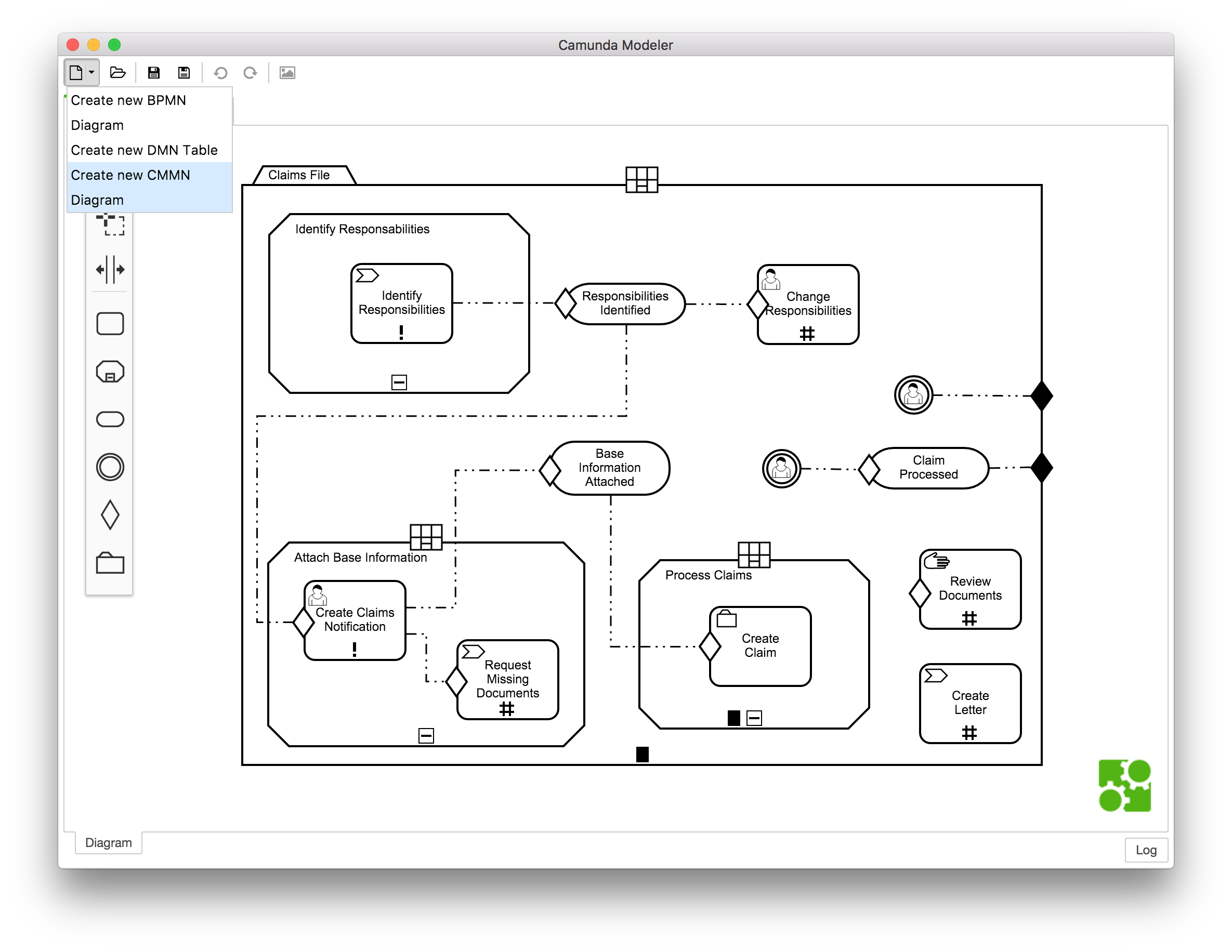
Camunda is a BPM platform that is based on open standards (BPMN and DMN) to coordinate human tasks, automated steps, and decision rules in complex business processes.
Key Features
- BPMN workflow engine: Industry-standard process modeling.
- DMN decision engine: Business rule management.
- Operate console: Monitoring and managing processes in production.
- Tasklist: Interface for human task management
Pros:
- Full support for BPMN and DMN standards.
- Scalable for enterprise applications.
- Used by many major companies (NASA, Atlassian, Audi).
- Large active community and complete documentation.
Cons:
- High learning curve for BPMN standards.
- Configuration required for advanced features.
Who Should Use Camunda
Camunda is for larger organizations with complex, mission-critical workflows requiring standard-compliant process orchestration.
Pricing
| Plan | Price | Notes |
| Community | Free | Self-managed, community support |
| Enterprise | Custom | Production support, advanced features |
10. Appian Review
BEST FOR: Low-code BPM and Case Management
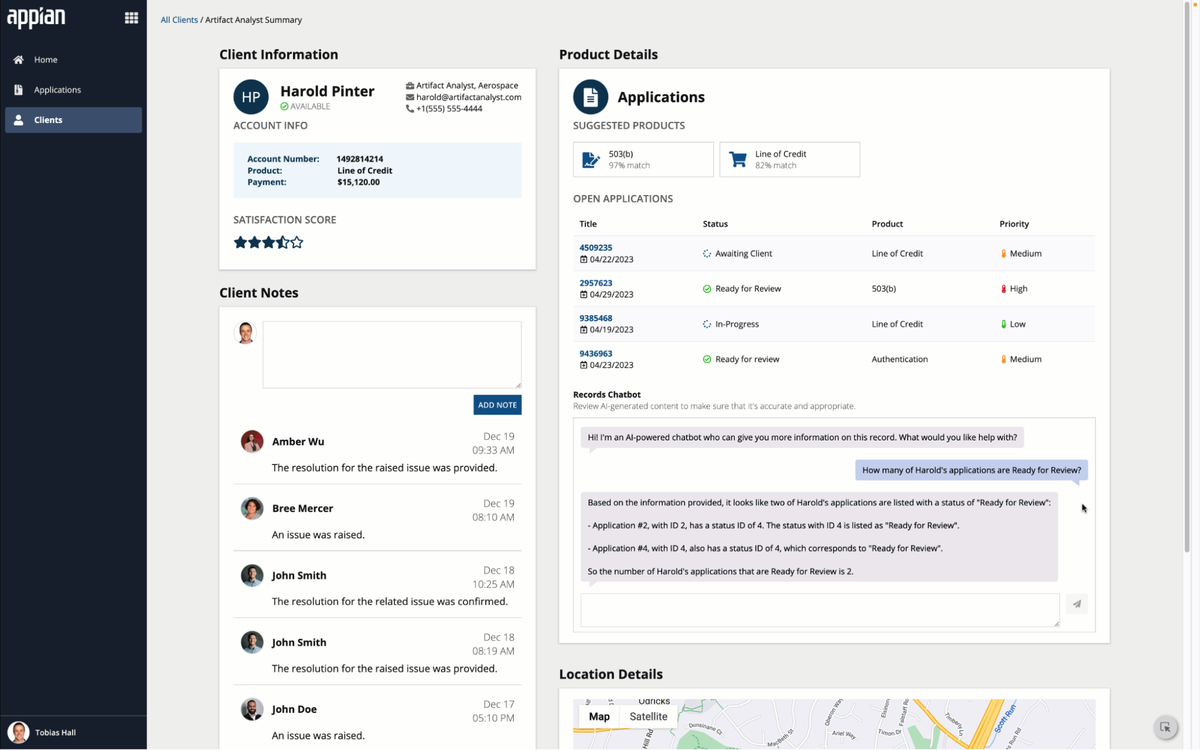
Appian is a low-code process automation platform for developing, automating, and enhancing the complexity of processes.
Key Features:
- Visual Process Modeling: Drag & Drop Flow Chart Builder with Logic Branching
- Data Fabric: Pull data from all systems (no duplication)
- Built in RPA and IDM: Automate structured and unstructured workflows
- Mobile Apps: Develop internal UIs and Portals
Pros:
- Human in the loop and backend automation
- Good Governance (Audit Trails, Access Controls, etc.)
- Cloud or On-Prem Deployment Options
- Trusted in Public Sector Organizations
Cons:
- Steeple Learning Curve
- Enterprise Tier Pricing
Who should use Appian:
Appian is for medium to large-sized organizations that require automation of processes across different departments (Finance, HR, Operations, Customer Service).
Pricing
| Plan | Price | Notes |
| Community | Free | For learning and development |
| Enterprise | Custom | Based on organization size and needs |
How to Choose the Right Process Automation Software for Your Business
Step 1: List Your Repetitive Tasks
Spend one week noting every task you do more than once:
- Sending out invoices, sending payments, and payment reminders
- Following up with leads
- Posting on social media
- Backing up files
- Updating your customers’ records
- Generating reports
- Onboarding your new clients
- Approving timesheets
- Syncing your data across applications
Step 2: Check Your Existing Apps
Look at the software you already use:
| Your Current Stack | Recommended Tool |
| Google Workspace, Shopify, Mailchimp | Zapier or Make |
| Microsoft 365, Excel, SharePoint | Power Automate |
| Mix of cloud and desktop apps | Make or n8n |
| Mostly personal/simple tools | IFTTT |
| Salesforce, NetSuite, complex systems | Workato |
| Enterprise-scale RPA needs | UiPath or Automation Anywhere |
| BPM/process orchestration | Camunda or Appian |
Step 3: Start Small
Do not automate all of your tasks at once.
Select a single time-consuming (15-30 minute) repetitive task that you perform each week and begin automating that first. Once you have automated this task, you can expand to other tasks as well.
Step 4: Determine Your Learning Curve
Be honest with yourself regarding your comfort level:
- Beginner or Easy: Zapier, IFTTT
- Moderate or Medium: Make, n8n, Power Automate
- Advanced or Expert: Workato, UiPath, Camunda, Appian
Step 5: Be Aware Of The Costs
The majority of tools charge based on the number of times they areused d“operations” or “tasks” per month.
Determine your usage estimate before committing to an automation solution. While many of the tools provide free tiers for months, if you intend to heavily automate, the cost will increase.
Step 6: Test Before Committing
All tools offer some form of free trial or tier.
Test at least two solutions using a real workflow prior to paying for them. You will quickly find out which user interface is most comfortable for your way of thinking.
If you are new to automation, please refer to our article on AI tools for small businesses to learn how AI assists in automation.
What Automation Can and Can’t Do
What Automation Does Well
| Task Type | Examples | Success Rate |
| Repetitive data entry | Moving records between apps | Excellent |
| File management | Saving attachments, organizing folders | Excellent |
| Scheduled communications | Email sequences, social posts | Very Good |
| Notifications | Alerts, reminders, updates | Very Good |
| Reporting | Data aggregation, dashboard updates | Good |
A real-world example of how a company used automation is a Marketing Agency’s ability to automate the monthly reporting for its clients. Before using automation, the Marketing Agency was spending six hours to pull information from five different sources for each client. Using automation now cuts this down to twenty minutes and also has fewer errors.
Problems Associated with Automation
Decision making: If you are going to use automation for decision making,g you have to include people who can make judgments. For example, when an auto-refund needs to be approved or when an auto-response does not resolve a customer complaint.
Creative Work: Although an auto-responder will schedule an email response, no one has the creativity to write compelling copy that will generate interest in a product or service. Software may be able to assist with some creative tasks, but ultimately, there is always a need for human oversight.
Building Relationships: While automation can provide an opportunity for large-scale outreach, it is impersonal and will never replace the relationship-building aspect of marketing. Therefore, I suggest using automation as a means of initial contact and then switching over to personal follow-up with the potential new client.
Automating Bad Processes: Automating a broken process will simply accelerate the mess, and therefore, the process should be fixed before attempting to automate. In other words, map out what the ideal workflow would look like on paper before attempting to build it into software.
Important Reality Check
While automation will save you time, it will not automatically generate revenue for you.
- To generate revenue for your company, you will still need to:
- Develop relationships with your customers
- Continuously improve your products or services
- Create marketing content that generates interest in your products or services
- Make strategic business decisions
While software can filter out background noise, you are responsible for doing the work that really matters.
Common Mistakes Beginners Make (And How to Avoid Them)
- Automating before simplifying
Error: Developing automation based on a mess of an unorganized workflow.
Solution First s, streamline your workflow; secondly, create the automation. Map out your desired workflow in writing and remove all extra steps. All input fields should be standardized before developing your automation.
- Forgetting to test
Error: Turning on your automation without testing with dummy data.
Solution: Prior to turning on your automation, run through a sample workflow using dummy data. Make sure you are checking every single step. If there are errors, sending wrong emails to hundreds of people or deleting very important files, these will never get caught until you have automated the workflow.
- Ignoring error alerts
Error: Creating automation and then forgetting about it.
Solution: Almost all platforms will notify you if your automation has failed. Log in to your account on a regular basis (at least once a week) and check for any errors. Having broken automation is worse than having no automation at all, false confidence while silently failing.
- Over-automating personal touch points
Erro: Sending automated emails that should be personal.
Solution: Congratulations, you just closed a big deal? A thank-you email from you personally would mean so much more to the client than the automated email. Use automation for time savings, and do not replace a real connection with automation.
- Not documenting workflows
Error: Building a complex automation without keeping track of what was done.
Solution: Document what each piece of automation does. Months down the road w, when something goes haywire, you will be glad you documented each part of the automation, including the trigger(s), action(s), and any customized logic used in the automation.
- Ignoring security
Error: Not examining how data is being handled by the automation.
Solution: Take a look at how your automation handles data. Some tools will keep backup copies of data. Make sure you are comfortable with this type of security practice, as well as ensure you are aware of encryption and compliance certifications for storing customer data.
- Starting too big
Error: Trying to automate everything at one time.
Solution: Select one small item to automate. Develop it. Learn the process. Grow from it. Start with small wins and grow your confidence and knowledge of automation.
Frequently Asked Questions
Do I Need Coding Knowledge To Use Process Automation Tools?
No, you don’t need to have coding knowledge to use modern automation tools. The vast majority of today’s automation platforms were created with the average user in mind. Zapier, Make, and IFTTT are three such examples, as they all utilize visual or form-based editors to make creating an automation possible without writing a single line of code. n8n and Workato will also allow you to create more advanced automations, but they, too, will function without code for basic automation functionality.
How Much Does Process Automation Software Cost?
There is a wide variety of costs associated with automation platforms. Many of them have a free version:
IFTTT –$0 – $3.99 per month
Make – $0 – $9+ per month
Zapier – $0 – $19.99+ per month
Power Automate – $0 – $15+ per month
n8n – $0 (self-hosted), $20 per month (cloud)
UiPath – $25+ per month for the base plan
Workato – Custom pricing – $10,000+ per year
Paid versions typically cost anywhere from $15 to $100+ per month, depending on how many tasks you wish to automate.
Will Process Automation Replace Hiring Employees?
Not exactly. Automation replaces the task of a person, not the role of a person. While automation may eliminate some of the administrative burdens of your business, it cannot replace creative problem solving, building relationships with customers, or strategic decision making.
In fact, most businesses find that automation allows the current employees of the company to be able to focus on higher-value items rather than simply replacing the headcount. For example, a five-member team with automation capabilities can accomplish more than a seven-member team without automation.
Do they support two-factor authentication?
If you have sensitive data, you might want to consider self-hosting an option like n8n so that your data is on your own servers.
How Do I Know That Automation Is Working?
Most automation platforms track each workflow that has been executed and will provide logs. You can track the following metrics manually:
- Time savings – compare the amount of time you used to spend doing a particular task versus the amount of time you save doing that same task after implementing automation.
- Error reductions – count the number of errors you made while performing a task manually before implementing automation, compared to the number of errors you make after implementing automation.
- Response times –are you responding faster to customers due to automation?
- Task completions –are tasks being completed that were slipping through the cracks before implementing automation?
Set up a review meeting once a month to evaluate the overall effectiveness of your automation efforts.
Which Tool Is Best For Complete Beginners?
Zapier is generally the most beginner-friendly platform. It provides a guided interface that walks you through every step of the automation creation process. Additionally, Zapier has a large library of templates that are often pre-built to solve common problems.
Begin by starting with the free version of Zapier, automate a single simple task, gain experience and confidence, and then expand into more advanced tools.
What is the Difference Between RPA and Workflow Automation?
RPA (Robotic Process Automation): Software robots that mimic human action to perform automated repetitive, rules-based tasks. Typically used for legacy systems that do not have APIs. Examples include UiPath and Automation Anywhere.
Workflow automation: Connecting applications and services through APIs to automate workflows. Typically used for modern cloud applications. Examples include Zapier and Make.
Many organizations today use both types of automation (RPA and workflow automation). They use RPA for desktop automation and workflow automation for connecting and integrating different cloud applications.
Can I Use Multiple Automation Tools Together?
Yes, many people use multiple automation tools together. Some common combinations include:
- Using IFTTT for automating personal productivity tasks
- Using Zapier for automating client-facing workflows
- Using Make for automating internal workflows
- Using UiPath for large-scale RPA
These tools can also trigger each other, although this can get confusing quickly. Therefore, it is recommended to begin with one tool and add others as needed.
How Often Do Automation Tools Break?
Reliability varies depending on the platform:
- Zapier and Make: Both have reliability ratings of 99.9%, which means they rarely fail.
- IFTTT: Less reliable than Zapier and Make. Occasionally experiences delays.
- n8n (self-hosted): Reliability depends on how well you maintain your server.
- Power Automate: Has high reliability within the Microsoft ecosystem.
- Enterprise RPA: Generally reliable; however, i will require ongoing maintenance because application developers continually update their APIs.
Most failures occur when applications update their API. Reliable platforms will notify you and guide how to fix the issue. Check your automation logs every week to catch any potential issues early.
What Tasks Should I Automate First?
Start with the repetitive, rule-based tasks that consume the most of your time:
- Performing data entry between applications
- Backing up and organizing files
- Sending email reminders and follow-ups
- Cross-posting social media content
- Creating customer onboarding workflows
- Generating and sending invoices
Choose one task, automate it successfully, then choose the next task.
Is There a Way to Get Started with Automation for Free?
Yes, all of the leading automation platforms offer a free trial version of their service:
- Zapier: 100 tasks/month
- Make:1,000 operations/month
- IFTTT:5 Applets
- Power Automate: Has limited free flows.
- n8n: Has no cost when hosted locally on your server.
Try the free versions of automation platforms to learn the basics and then upgrade as necessary.
How Long Will It Take Me to Set Up Automation?
Simple automation using a template takes approximately 5 to 15 minutes to set up. More complex workflows may take 1 to 2 hours to set up and test.
Most users are able to create their first working automation in less than 30 minutes after signing up for an account.
NetSuite Accounts Payable Automation That Transforms Finance 2026
Final Thoughts
Process automation software in 2026 is about eliminating friction to enable you to run your business, serve your customers, and occasionally go home on time, not replacing humans or being part of some futuristic trend.
Quick Selection Guide
| If you need… | Choose this… |
| Simplicity and a huge app library | Zapier |
| Visual, complex workflows | Make |
| Complete data control | n8n |
| Microsoft ecosystem integration | Power Automate |
| Enterprise-scale RPA | UiPath |
| Cross-system orchestration | Workato |
| Simple personal tasks | IFTTT |
| Cloud-native automation | Automation Anywhere |
| BPM/process orchestration | Camunda |
| Low-code BPM | Appian |