Motion Review 2026: I Let AI Plan My Entire Day (Honest Results)
I was always starting each morning in the same manner. With coffee in one hand, I’d be looking at my to-do list with a look that seemed as if it were written from the mind of three different individuals. Here, I had meetings scheduled, time blocks dedicated to deep work, and miscellaneous other random tasks throughout. In many ways, by 11 AM, I had made approximately 40 small decisions on what to do next, but I still wasn’t done with anything truly important. Sound familiar?
This is exactly how I chose to evaluate Motion AI Review, a scheduling app that claims it can give you control of your entire day to an algorithm and have it all come together.
For seven consecutive days, I used Motion AI without deviation or returning to my previous method. The only thing that changed was my tasks and the artificial intelligence that thought it could outsmart me. Spoiler Alert: It Did.
Below is my complete and unfiltered evaluation of Motion AI, No Hype and No Fluff; only what you will need to consider prior to purchasing with your own hard-earned money.
What Is Motion AI?
Motion AI is an automated daily planner, task manager, and calendar automation tool – all in one application. Instead of dragging items around your calendar yourself, the Motion AI app’s artificial intelligence does this work for you.
You inform the system which jobs need to be completed and by when they need to be done. Then Motion AI determines the most optimal times to book those appointments with consideration of your current commitments, deadlines, energy levels, and priorities.
In essence, think of using Motion as if you had a virtual assistant managing your schedule behind-the-scenes every day.
Google/AI Search Quick Response:
Motion AI is a highly productive AI-based tool that uses its capabilities to build your daily agenda (calendar) through analysis of your job requirements, deadline obligations, and scheduled events. In addition to being able to manage calendars, create schedules for tasks and projects, track projects, and automate scheduling meetings, it creates one intelligent space that allows users to save time and mental energy required for doing their own research and planning.
This product is designed to be used by busy professional employees, freelancers, solopreneurs, or small business teams who are always balancing multiple activities simultaneously.
How Motion Works
It seems easy enough, but then again, the technology itself is anything but simple.
First step – Sync your calendar:
The good news here is that motion syncs directly with both Google Calendar and Outlook. So, all of your existing calendar items will appear in motion immediately. This includes: meetings, appointments, and even blocked-out time.
Second step – Create tasks:
You create a task, which can include: a deadline for completion, a priority level, and an estimated amount of time required to complete the task. However, you’re not going to add these to your personal calendar. Motion does this for you.
Third step – Let the artificial intelligence do its job:
Once you’ve created a task and assigned it to a specific date and/or time period, the artificial intelligence from motion will place the task(s) into your calendar at the most optimal point possible. The artificial intelligence takes into account your deadlines, the blocks of free time you have before and after your scheduled meetings, your regular work hours, as well as the urgency of the individual tasks.
Fourth step – Accept/reject the daily agenda:
Each morning, motion will generate a new daily agenda. Now, if some unforeseen circumstance occurs, such as a new meeting being scheduled, a particular task running longer than anticipated, the artificial intelligence will instantaneously shuffle all other items within your calendar to help ensure that your day remains on track.
The learning curve for this type of program is very real. At first glance, it may seem foreign to let someone else control your schedule. Once you get past that feeling of losing control of your schedule, however, you’ll begin to see just how much power there really is in using a scheduling tool like this.
My 7-Day Experience Using Motion
I am going to be honest with you, I went into this test as a cynic.
Over the past decade, I have used dozens of productivity software, including Notion, Clickup, Toodist, etc. Each one of these software applications has given me the illusion of being more organized for approximately three (3) days before I abandoned it and returned to using sticky notes.
Days 1-2: Frustration and Confusion
Motion is much harder to set up than most other applications. You are required to enter every task, prioritize each task, provide an estimated time needed to complete the task, and define your normal working hours. This process can take significantly longer than setting up most applications. After completing the application setup process, Motion will create a schedule for your first full day. There will be no additional effort from you.
My issue, however, Motion created a deep writing block at 9 am, directly after a 45-minute client meeting. I would never perform that type of activity. I require buffer time after speaking with clients. I had to personally correct that error and educate the AI about my preferences.
Days 3-4: It clicked…
By Wednesday, something had shifted. When I opened Motion for the first time in the morning, my day was already laid out. All priorities were established. All time blocks were defined. I did not need to think…I simply executed.
In addition to feeling better about motion, I was able to accomplish three (3) tasks by noon that I would have taken me two (2) days if done individually and at random times.
The AI also observed that I repeatedly pushed off a specific task and automatically increased the priority level of that task. I thought that was a good use of artificial intelligence.
Days 5-7: The Real Test
When two unplanned meetings appeared on my calendar on Friday, in my old world, those meetings would have totally derailed my plans for the remainder of the week. However, with Motion, the AI rescheduled all of my time blocks within seconds. None of my tasks were dropped. None of my tasks fell through the cracks.
At the end of the week, I had accomplished nineteen (19) of twenty-three (23) tasks. My personal best before using Motion was twelve (12) or thirteen (13), realistically.
The before vs. after:
| Before Motion |
After Motion |
| 40+ daily micro-decisions |
AI handles scheduling automatically |
| Tasks are constantly rescheduled manually |
Auto-rescheduling in real time |
| Deep work interrupted by poor planning |
Protected focus blocks |
| 12–13 tasks completed per week |
19–20 tasks completed per week |
| High mental fatigue by midday |
More energy for actual work |
Was it perfect? No. But it was significantly better than what I was doing before.
Key Features That Actually Matter
I’ve tried several different programs that claim to help users organize and manage their time. This article outlines some of the tools that were useful for organizing my own time.
The five most important functions that I have found useful include:
1. Function #1 – AI Auto-Scheduling Functionality
AI auto-scheduling is one of the main ways that Motion has helped me organize and manage my time. When I enter my tasks, Motion’s Artificial Intelligence will place these tasks into my calendar at times when they are due, according to how much time each item takes to complete and my current schedule. If my priorities change or I am invited to a meeting during the course of the day, Motion will immediately reschedule all of my other appointments so that I may attend the new appointment. I do not need to spend additional time manually adjusting my schedule to accommodate changes that occur throughout the day.
When you are responsible for many separate projects and deadlines, this tool is worth the cost of entry. Rather than spending time making a list of your upcoming events and determining which event to go to next, I can now use that time to accomplish the actual tasks associated with each project.
2. Function #2 – Task Priority Function
While not all of the tasks you have are equally important, Motion allows you to categorize tasks as either High Priority, Medium Priority, Low Priority, or Urgent. According to these categories, the artificial intelligence will determine which tasks should be completed first.
I also noticed that Motion will proactively elevate items near their deadline regardless of whether or not I originally categorized them as a “Low” priority. Therefore, even though I may think that an item is not very important, Motion recognizes that the item needs attention. A major aspect of developing trust in a system such as Motion is recognizing its ability to identify potential problems.
3. Function #3 – Automatic Calendar Booking and Blocking Deep Work Time
Another function that I enjoy is automatic calendar booking and blocking of deep work time. While scheduling appointments is something that Motion does well, protecting your focus time is also an area in which it excels. In fact, if another individual attempts to schedule an appointment with you during a period of uninterrupted time (i.e., a “deep work” block), Motion only provides the potential attendee with options from your available calendar space that will not interrupt your uninterrupted time.
In many cases, rather than having interruptions during your peak productivity hours, Motion will provide you with a degree of protection against being interrupted while you engage in focused work activities.
4. Function #4 – Smart Booking Link for Meetings (Scheduling)
As stated earlier, Motion produces smart meeting scheduling links. These links reflect your true availability — not just your bare calendar. After you generate a link, the person you want to meet with can select a date and time that works for both parties, and Motion’s AI will ensure that meeting selections are non-fragmenting of your worktime.
To put it simply, while the functionality of Calendly is similar, the AI component within Motion considers your existing workload before accepting new meetings.
5. Function #5 – AI Meeting Recorder / Transcriber / Decision/Action Item Extractor
Finally, while a relatively recent development, Motion’s AI meeting recorder/transcriber/decision/action item extractor offers tremendous value to teams that conduct numerous meetings per week. The feature enables the recording device to automatically join your meetings, record them, transcribe conversations, and extract key decisions and action items from the recordings. Following the transcription and extraction process, these extracted elements are placed onto your task list and subsequently scheduled automatically.
Pros and Cons
Pros
- You will see real-time savings. Once the application is properly configured, Motion can realistically help you save from 30-60 minutes of planning time per day.
- Motion will automatically adjust your schedule when events or meetings are changed. You no longer have to manually adjust your calendar.
- You will reduce decision fatigue. Instead of making 40 separate “what should I do now” decisions throughout your day, the AI does that for you.
- It will protect your deep work. Smart scheduling of your meetings protects your focus blocks.
- The Motion is a single platform. Your calendar, tasks, projects, meeting booking, and note-taking are all contained within one application.
- Motion integrates seamlessly with Google Calendar and Outlook. It uses the tools most professionals are already using.
- There is a seven-day free trial. Before you pay anything, you can fully utilize the entire application.
Cons
There is a steep learning curve at the beginning. Setting up the application can take some time. You must correctly configure your tasks, priorities, and preferences before the AI functions appropriately.
“Surrendering” to the application. For many people, the initial discomfort of allowing an AI to manage their calendar during the first week is overwhelming. Many people cannot pass this point.
High premium price. With a cost of $29/month (billed yearly), it is also significantly more costly than alternative applications, which are much less complex.
Weak mobile application. The desktop and internet versions of the application function perfectly. However, the mobile version of the application is noticeably less user-friendly. While useful for quick checks, it is best used in a limited capacity.
Limited reporting capabilities. While Motion provides adequate data regarding how you spend your time, it lacks significantly deeper analysis capabilities than other applications designed specifically for tracking usage of time.
Motion requires continued entry of information. For the AI to be able to assist you, you must enter and update your tasks regularly. If you do not provide quality information into the system (garbage in – garbage out), then Motion will not be able to function as intended.
Motion Pricing (2026)
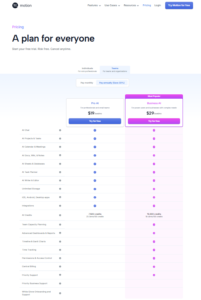
Motion has changed how it charges for its services as of 2026, and its website doesn’t do an excellent job of showing exactly how much things cost, but I can give you the basic information you’ll need to understand this.
AI Workplace Plan (for Individual)
The cost for the individual plan is approximately $29/month. This is billed yearly, which saves you approximately 33% off the cost if you were paying by the month.
What does your money get you?
- Full AI Scheduling
- Calendar Management
- Task & Project Management
- Booking Links
- AI Notetaker
- AI Docs
- and 1000 AI Credits
This is probably going to be the best option for almost every freelancer or small business owner.
Team Plans (Business AI)
Team Plans are priced based on each seat. When you purchase 2 or 3 seats or more, you will receive discounted rates.
You will have access to:
- Collaborative Project Boards
- Shared Calendars
- Scheduling Features for Teams
- Advanced AI Automation
Free Trial
All plans offer a 7-Day Free Trial. No Credit Card is required when you sign up to begin using Motion (be sure to check Motion’s website for current free trial policies). Cancel Anytime During the Trial Period.
Will Motion pay for itself?
Here’s the real breakdown of costs. If Motion is able to save you 30 minutes per workday of time spent scheduling and planning, that works out to approximately 10 hours per month. Based on even moderate hourly rates, the Return On Investment is obvious. It really comes down to whether or not you are one of those professionals who would consistently use this tool.
If you’re a freelancer who bills at least $50/hour, the math makes it easy. And if you’re a very casual user and don’t have a lot of tasks to complete, then yes, there are other tools out there that are less expensive than Motion.
Motion vs Notion vs ClickUp
What We Are All Looking For. Below is an easy-to-read summary comparing the two programs.
Notion vs Motion
Notion allows users to create one centralized space with many different types of content (notes, databases, wiki’s etc) and has endless possibilities as to how you can design your space. While this flexibility is a large part of why users enjoy using Notion, it is also the reason that some users will find themselves overwhelmed by the sheer number of options available. Users must create everything they want in their Notion Space on their own.
On the other hand, Motion takes away many of the options for customizing, but it does handle one very important decision that we often struggle with. How should I spend my day? When should I be doing things?
If you need a powerful documentation tool, a way to organize information, or a customizable workspace for your team, then you may want to consider using Notion.
However, if your largest area of frustration revolves around knowing when to accomplish tasks rather than what you want to accomplish, you may want to look into utilizing Motion. Motion helps bring structure to your daily routine so that you are no longer feeling like your days are simply reacting to whatever comes up.
In fact, Notion and Motion can both be used together by professionals. Many individuals utilize Notion for documenting projects and Motion for managing their schedules.
Motion vs ClickUp
ClickUp offers an incredible number of features compared to other project management tools available today. It includes features like Kanban boards, Gantt charts, time tracking, goal setting, workflow automation, and powerful reporting capabilities. As such, it is well-suited to meet the needs of teams that manage very large and/or complex projects.
However, the fact that ClickUp provides so many features comes at a cost; namely, significant complexity. As such, ClickUp has a very high (and therefore “steep“) learning curve. Moreover, ClickUp can quickly become overwhelming.
Motion’s use of artificial intelligence (AI) for scheduling greatly exceeds the capabilities offered by ClickUp. Unlike ClickUp, which does NOT create your daily schedule automatically, you will be required to manually enter how you would like to organize your day within ClickUp.
| Feature |
Motion |
Notion |
ClickUp |
| AI Auto-Scheduling |
✅ Best in class |
❌ None |
❌ Basic |
| Task Management |
✅ Good |
✅ Flexible |
✅ Advanced |
| Project Management |
✅ Solid |
✅ Customizable |
✅ Best in class |
| Calendar Integration |
✅ Deep |
❌ Limited |
⚠️ Basic |
| Learning Curve |
⚠️ Medium |
⚠️ High |
⚠️ Very High |
| Meeting Scheduling |
✅ Built-in |
❌ No |
❌ No |
| Price (Annual) |
$29/mo |
Free–$16/mo |
Free–$12/mo |
| Best For |
Time management |
Knowledge base |
Complex projects |
Who Should Use Motion?
If you identify with any of the following, you are likely a good fit for motion:
- Solopreneurs or other small businesses that have too many hats
- Freelance/consultants working on multiple clients/projects at one time
- People in the knowledge worker field, writers, marketing people, developers, etc., who require deep periods of work.
- Executives/managers who attend meetings all day.
- Anybody who has trouble staying focused/procrastinating — An AI can remove a great deal of mental energy to help you stay organized.
- Remote workers who have to manage asynchronous schedules across multiple time zones
- You are a person who has used every to-do list application out there, but is still disorganized. The primary issue here is not how to track your time; it is how to organize your time. This is why we created Motion.
Who Should NOT Use Motion?
To give you as realistic a view as possible, here’s who Motion is likely NOT for.
Users of basic tools with limited task volume (i.e., less than 10 tasks a week). If you can get by with using only a few tasks in the morning, and you don’t need a lot of complexity, Motion is too much money. Free tools such as Google Tasks, Todoist, etc. would be perfect for you.
Those who require complete control of all scheduling decisions. While Motion does provide some level of automation with its scheduling features, if you’re still concerned about having total control – i.e., want to schedule everything manually – then this tool will ultimately become frustrating for you.
Team members who require robust project analysis and reporting. Although Motion provides good reporting, if you need advanced team reporting and project-level data at the detail level of other options (such as Asana, ClickUp, or Monday), then those are your best bets.
The mobile user. While Motion may be usable on a smartphone, it’s not a mobile-first app. I.e. while you can access the apps from a mobile device, there simply aren’t enough features to make it worth the investment in terms of mobile use.
Budget-constrained teams. With an initial cost of $29/mo, it’s expensive. And even though there is a free trial, Reclaim AI also has a solid free version, which uses many of the same AI scheduling techniques used in Motion, so unless you really see value in what Motion can bring, then it may be difficult to justify spending money on something else.
GoHighLevel Review 2026 →
Final Verdict — Is Motion Worth It?
Be honest with yourself.
Motion AI review verdict: yes, but only if you fit the profile.
You’re a busy bee. You spend hours of each day deciding what to do next, and have the willpower to create an organized workflow that utilizes the tool as intended. For you, motion is possibly one of the best productivity tools out there in 2026.
The AI scheduling is not a gimmick. It works. It helped me save real time, reduced my decision fatigue, and allowed me to get more work done in the same number of hours.
However, that wasn’t magic. It required setup time, trusting the algorithm (and trusting that I was entering data correctly), and continuously entering data to stay effective. The first week was awkward. The mobile app was mediocre. And spending $29 per month is an investment.
Try it completely risk-free. Use the 7-day free trial. Add all your real tasks, commit to using it properly for one full week — by day four, you will know if it is for you.
👉 Try Motion Free for 7 Days →
FAQs
How much value can busy entrepreneurs get out of using motion AI?
Busy entrepreneurs, freelancers, and one-person business owners will find that Motion’s AI-based scheduling tools save time and reduce the stress of daily planning. Since motion provides a free 7-day trial period, entrepreneurs can try the product without any risk before they commit to paying for a subscription.
Does motion AI replace to-do lists?
Partly. Motion doesn’t simply store your tasks – it actually puts those tasks into your calendar. While you will still be required to enter and manage the details of your tasks within Motion, this application eliminates the need to decide which task you should complete first, which is essentially what a traditional to-do list accomplishes.
Does motion offer a free plan?
There isn’t a truly “free” option available from Motion; however, they do offer a 7-day free trial on each of their paid options. Upon expiration of the free trial, the cheapest monthly rate for an individual AI workplace membership would cost $29 per month (when billed annually).
Will teams benefit from using motion?
Yes, particularly smaller teams consisting of 3-10 members with interconnected projects. In addition to offering the ability for team members to collaborate through shared project boards, team scheduling, and cross-calendar visibility, the business AI membership includes additional collaboration features. Larger organizations requiring comprehensive reporting capabilities might consider alternatives such as ClickUp or Asana.
Can I use Google Calendar with motion?
Yes. Both Google Calendar and Microsoft Outlook are supported by Motion’s two-way synchronization technology. Any updates made to either Google Calendar or Microsoft Outlook will immediately update the other; as well, whenever changes occur to your calendar, motion’s AI will automatically adjust your schedule based upon those new entries.
How long does it take to set up motion?
It will require approximately 1-2 hours of setup time to create your initial task list, define your priority levels, and determine your work hours. After approximately 2-4 weeks of continuous use, the AI will become increasingly effective at anticipating your needs and scheduling accordingly based on your historical usage data.
Have you tried Motion AI? Drop your experience in the comments below. Real reviews from real users always help the community make better decisions.
Affiliate Disclosure: This article contains affiliate links. If you purchase through these links, we may earn a small commission at no extra cost to you. We only recommend tools we genuinely believe in.