
How to Back Up a WordPress Site (and Actually Restore It)
Most WordPress backups fail on the day they are needed, not the day they are made. Here is how I set up backups that restore cleanly, using a plugin, cPanel, or the manual route, plus the restore drill nobody runs until it is too late.
What's Happening
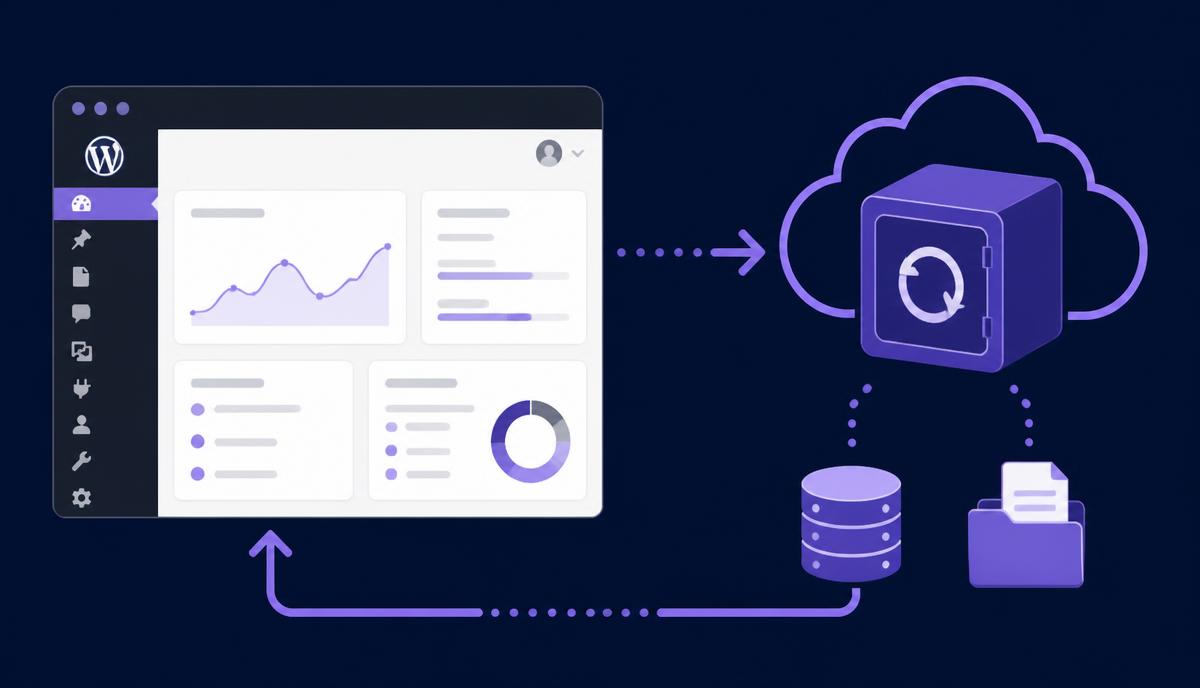
Almost every emergency I get called into starts the same way. The site is down, the owner says there is a backup, and then we find out the backup is six months old, or it only holds files and no database, or it lives in the same hosting account that just got wiped. A backup you have never restored is a guess, not a safety net. WordPress needs two things saved together to come back to life: the files in your install, which include wp-content, your theme, plugins, uploads, and wp-config.php, and the MySQL database, which holds every post, page, user, setting, and WooCommerce order. Save one without the other and you have half a site. This guide covers the three ways I actually back sites up, the storage rules that keep a copy alive when the server does not, and the restore steps, because restoring is the part that goes wrong.
Complete Fix Checklist
- 1Decide what needs saving. Files and database together, every time. A files-only backup restores an empty site and a database-only backup restores content with no theme.
- 2Check what your host already runs. Most managed hosts keep daily automatic backups for 14 to 30 days, and cPanel hosts often keep weekly ones. Find the retention period before you pay for anything.
- 3Install UpdraftPlus, or your preferred backup plugin, from the official WordPress directory and open Settings > UpdraftPlus Backups.
- 4Set the schedule to match how often you publish. Daily files and daily database for an active shop, weekly files and daily database for a blog that changes rarely.
- 5Send backups off-site. Connect Google Drive, Dropbox, Amazon S3, or Backblaze so a copy exists outside the hosting account.
- 6Set retention to keep at least the last 7 copies, so a problem you notice a week late is still recoverable.
- 7Run one backup manually and download the archive to your own computer. That is your known-good copy before any big change.
- 8For the cPanel route, open Backup Wizard, download a Full Account Backup for archiving, or take a Home Directory download plus a database export for a working copy.
- 9For the manual route, download the whole public_html folder over SFTP, then open phpMyAdmin, select your database, and use Export > Quick > SQL.
- 10Test the restore on a staging copy, not on live. Restore the archive, load the front page, log into wp-admin, and open a post.
- 11Write down where the backups go and who has access. A backup nobody can find during an outage is not usable.
Quick Tips
- Files and database must be backed up together, or the restore leaves you with half a site
- A backup stored only on the same server disappears with the server, keep an off-site copy
- Retention matters more than frequency, since malware and corruption are often noticed days later
- wp-config.php and the .htaccess file are easy to miss because file managers hide dotfiles by default
- A backup you have never restored is an assumption, run one test restore on staging every few months
- Before a plugin, theme or PHP upgrade, take a fresh manual backup rather than trusting last night's
Frequently Asked Questions
Sources and Further Reading
- WordPress backups - WordPress.org Advanced Administration
- Debugging in WordPress - WordPress.org Developer Resources
- Editing wp-config.php - WordPress.org Advanced Administration
More guides in this area: Recovery troubleshooting hub